| |
Table of Contents -
What Is Prepay Personal Property? -
Why Is My E-mail Address Needed? - How Do I Prepay Personal Property?
-
Prepay using Account Number/Last Name -
Name Selection Screen -
Account Detail Screen -
Online Payment Checkout Screen -
How Do I Pay with a Credit Card? -
How Do I Pay with an Electronic Check? Do Additional Charges Apply for Paying Online? |
|
| |
| Prepay Personal Property allows you to pay Personal Property bills before they are issued by Lunenburg County. |
|
| Back to Top |
|
| |
| Your e-mail address is a unique identifier used to combine tickets marked for payment into one lump sum. |
|
| Back to Top |
|
| |
|
| On the first screen, enter your e-mail address and then click OK. |
|
 |
|
| Back to Top OK |
|
|
| Enter Account Number Number and Last Name. Press the Search button. |
|
 |
|
| Back to Top Search |
|
|
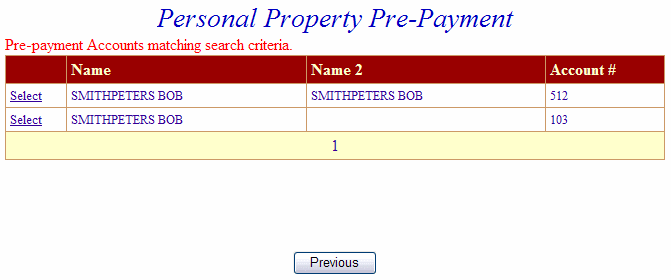
| To view Detail, press the Select link next to the correct name. Press the Previous button to return to the first screen. |
|
 |
|
| Back to Top Select
Previous |
|
|
| The Account Detail Screen shows more information about the property including any prepayment balance. Enter amount to prepay and then press Make Payment button. Pressing the Previous button returns to the first screen. |
|
 |
|
| Back to TopSearch |
|
|
| On Line Payment Checkout screen now shows both bills. The amount to pay entered for each bill is shown in the Total Payments field. Proceed as normal from this point. All tickets can be removed by pressing Clear Shopping Cart button. To pay by electronic check, press Pay by e-check button. For credit card payments, press Pay by Credit Card button. |
|
 |
|
| Back to Top Pay by e-check Pay by Credit Card |
|
|
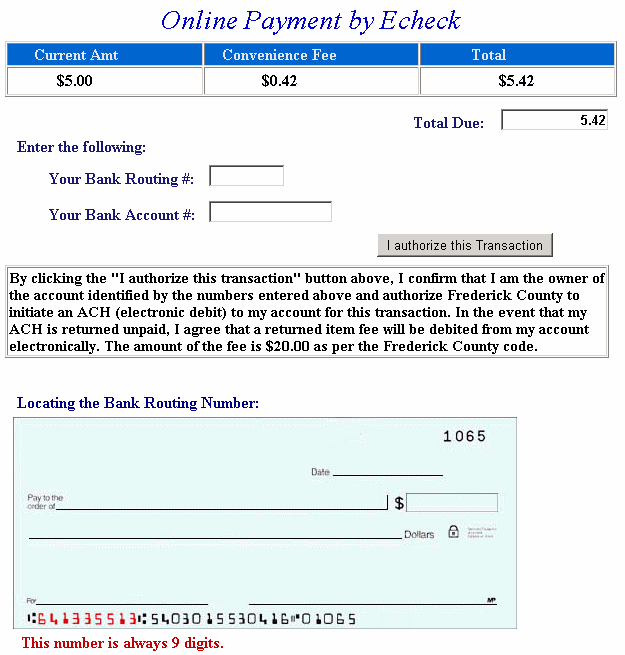
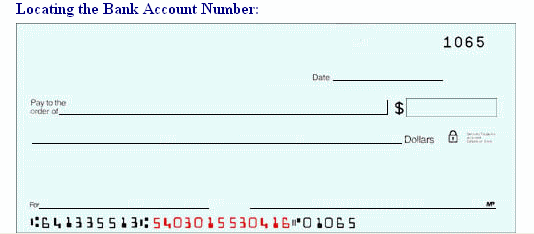
| Pay by Electronic Check Screen - Payment Amount + Convenience Fee = Total Due. Input Check Information and then press the I Authorize this transaction button. |
|
 |
| |
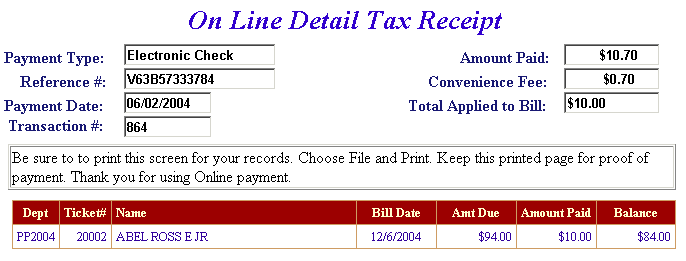
| An online receipt is displayed. We recommend you print this receipt for your records. |
|
 |
|
| Back to Top |
|
|
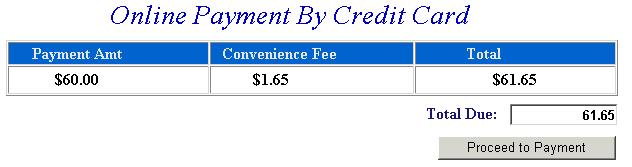
| Pay By Credit Card - Payment Amount + Convenience Fee = Total Due. Press Proceed to Payment button to enter Credit Card information. |
|
 |
|
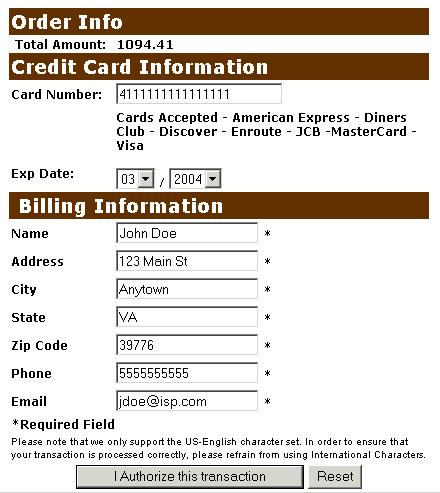
| Input Credit Card and Billing Information and then press the I Authorize this transaction button. Pressing Reset button clears data from all information fields. |
|
 |
|
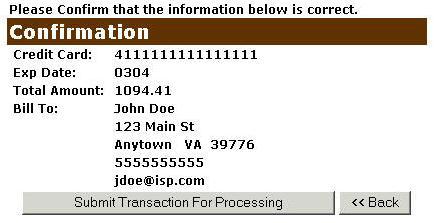
| This screen shows Credit Card information as entered on the previous screen. Verify all information is correct and then press Submit Transaction for Processing button. Press Back button on browser if information is incorrect. |
|
 |
|
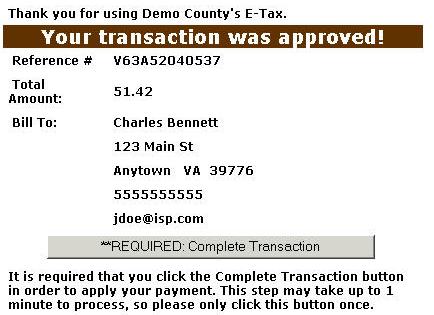
| This screen announces if the transaction was approved. IMPORTANT: You MUST press the **REQUIRED: Complete Transaction button for the transaction to be applied to your property tax bill. |
|
 |
|
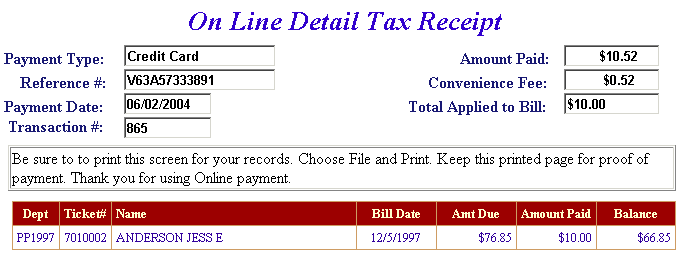
| An online receipt is displayed. We recommend you print this receipt for your records. |
|
 |
|
| Back to Top |
|
| |
| Yes, a Convenience Fee is applied to each transaction. For Credit Card Payments: .0245% of the Total Bill. The Convenience Fee is charged by Verisign and our Merchant Account for Accepting Credit Cards Online. The fee is automatically added to your Total Bill. For Online Check Payments: No convenience charge applies to payment by online check. |
|
| Back to Top |